Receivables
In the open receivables overview you can see all payments that are authorized or in processing but have not yet been received. You can download invoices and dunning letters or send them directly by email.
Overview
Open receivables are payments that have been initiated by your members or customers but have not yet been completed. Typical reasons include pending bank transfers, ongoing direct debit processes, or unconfirmed credit card payments. In the receivables overview you can check the status of all open payments, download invoices and dunning letters, and send them directly by email.
View and manage receivables
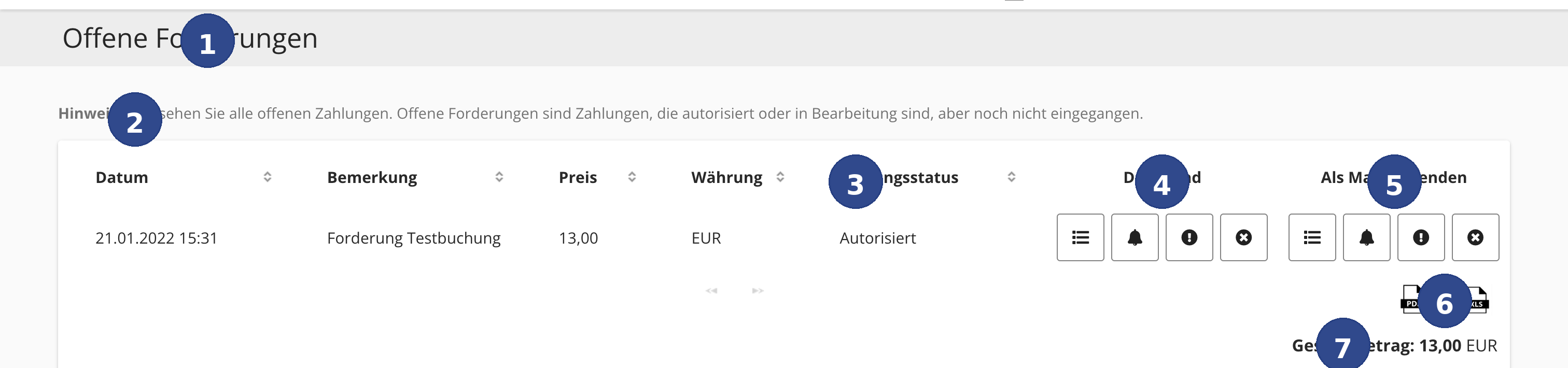
- ① Notice
- The notice text at the top explains that all open payments are listed here. Open receivables are payments that are authorized or in processing but have not yet been received.
- ② Sorting
- The column headers Date, Remark, Price, Currency, and Payment Status are sortable. Click a column header to sort the list in ascending or descending order.
- ③ Payment status
- Shows the current status of the payment, e.g. Authorized (payment has been approved but not yet collected) or In Processing (payment is currently being processed).
- ④ Download
- Use the four download buttons to download documents for each receivable as PDF. The buttons from left to right are: Invoice (list icon), 1st Dunning (bell icon), 2nd Dunning (exclamation mark), and 3rd Dunning (cancel icon). This gives you quick access to all documents from the initial invoice to the final dunning level.
- ⑤ Send by email
- Use these four buttons to send the same documents directly by email: Invoice, 1st Dunning, 2nd Dunning, and 3rd Dunning. A dialog opens where you can enter the recipient's email address or select it from your contact list. The subject line and PDF attachment are filled in automatically.
- ⑥ Table export
- Use the export icons at the bottom right to download the entire receivables list as a PDF, CSV, or Excel file. The export file contains all currently displayed receivables with date, remark, price, currency, and payment status.
- ⑦ Total amount
- At the bottom of the table the total amount of all open receivables is displayed. This gives you a quick overview of the sum of all outstanding payments.
Sending emails
When you click one of the email buttons ⑤, a send dialog opens. The dialog shows the recipient name, an input field for the email address with auto-completion from your contact list, the automatically generated subject line, and the PDF attachment (invoice or dunning letter). After clicking Send, the email with the corresponding document as attachment is sent.
Dunning stop for fees
In the fee management you can activate a dunning stop for individual fees. When the dunning stop is set, no dunning letters are generated for open receivables of this fee. You can find this option in the fee settings as a checkbox.
Tips for receivables management
- Regularly check the payment status of your open receivables to detect payment defaults early.
- Use the sorting function to sort by date or amount and quickly find older receivables.
- Start with the 1st dunning and escalate to the 2nd and 3rd dunning level if needed.
- Send dunning letters directly via the email function — the recipient and attachment are filled in automatically.
- Export the receivables list regularly as CSV or Excel for your accounting.
- Use the dunning stop in the fee settings when no dunning letters should be sent for certain fees.